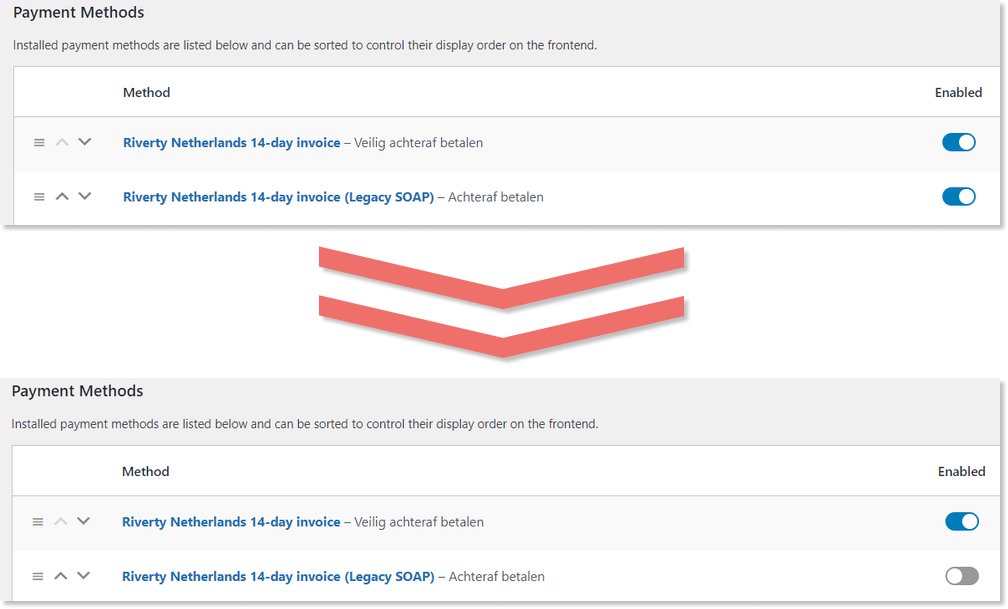
Upgrade SOAP to RESTful API
Introduction
All Riverty connections in Woocommerce for Dutch and Belgian clients need to upgrade from Riverty’s old SOAP API to the new RESTful Checkout API before August 1, 2024. Failure to update the RESTful connection will result in the rejection of all incoming orders starting on August 1, 2024.
Support
In case you require assistance at any point in the process, please reach out to support@riverty.com.
The Benefits of the RESTful Checkout API
- Faster response times improve your customers' shopping experience
- No more need to ask 'gender,' so 1 less step at the checkout
- Images of the products in your online shop become visible in the Riverty app and the MyRiverty web portal
- Our new products, such as Pay-In-3, are only available via the RESTful Checkout API connection. Future new products will also be available only via RESTful Checkout API
- Riverty’s Strong Customer Authentication solution is only available via RESTful API
- The RESTful Checkout API expands available markets to the Netherlands, Belgium, Germany, Austria, Switzerland, Norway, Finland, Sweden and Denmark
- The RESTful Checkout API reliable connection in use since 2016

Step 1: Confirm Plugin Version
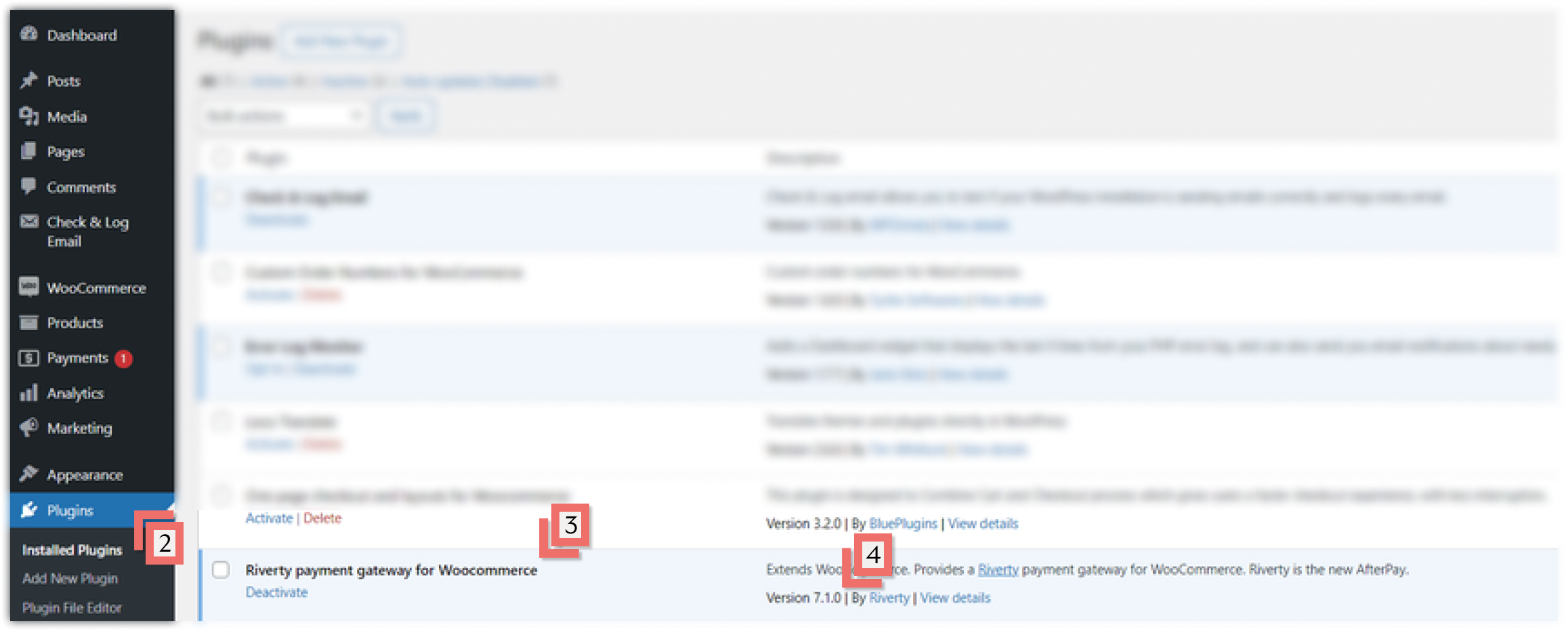
- Log into the Wordpress admin environment
- Choose Plugins in the left menu
- Search for Riverty Payment Gateway (or AfterPay Payment Gateway)
- The version number of the plugin should be at least: 7.1.0. If you have an older (lower) version of the Riverty plugin, update to the latest version first. If you don’t have this version, please access the marketplace to download the file directly from there
Step 2: Retrieve your Shop’s API Key
The SOAP connection works via a username (Merchant ID and Portfolio ID) and a password. The REST connection replaces that with an API Key. Your API Key can be found on our Merchant Portal.
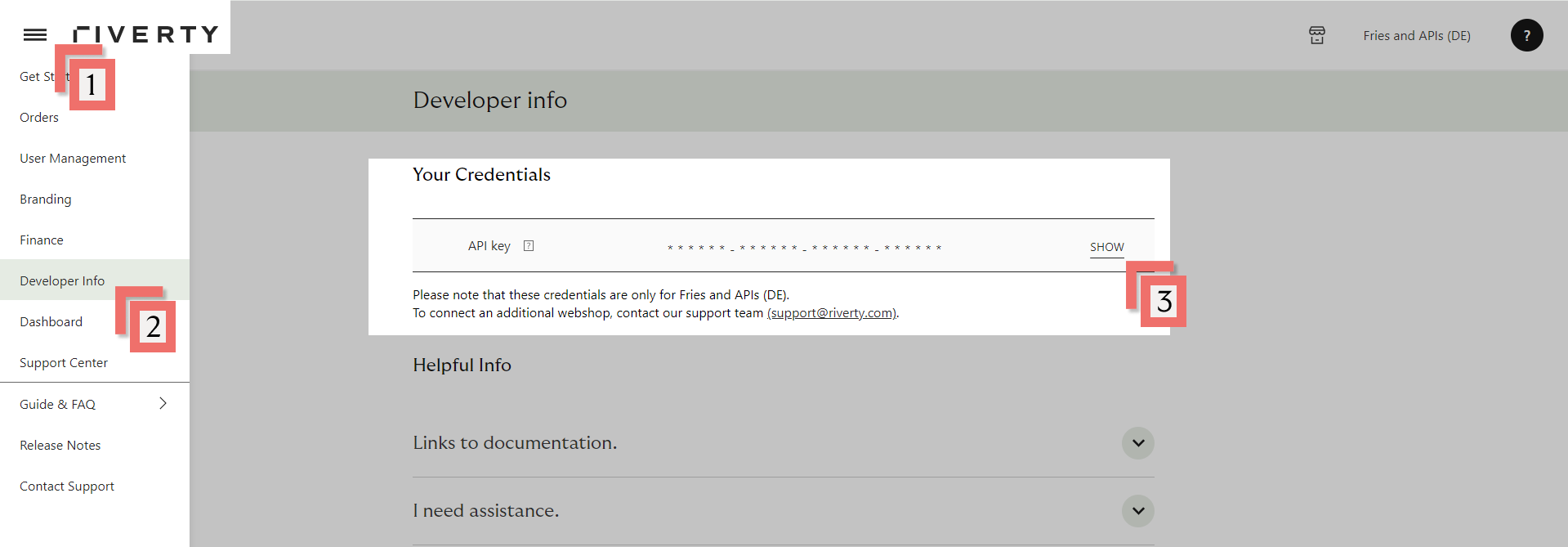
- Open the left menu
- Choose Developer Info in the left menu
- Show your API Key (This is only visible to Merchant Portal users with rights 'Administrator')
Step 3: Select RESTful Payment Methods
Important Note, “Step 3: Store API Key” & “Step 4: Configure RESTful Payment Methods” must be completed for each selected country-payment method combination with a different API Key! (you will get a different API Key per Country, per payment method and per Webshop) For example, if you offer 14-day Invoice in the Netherlands and Belgium, you need to repeat these steps twice with two different API Keys.
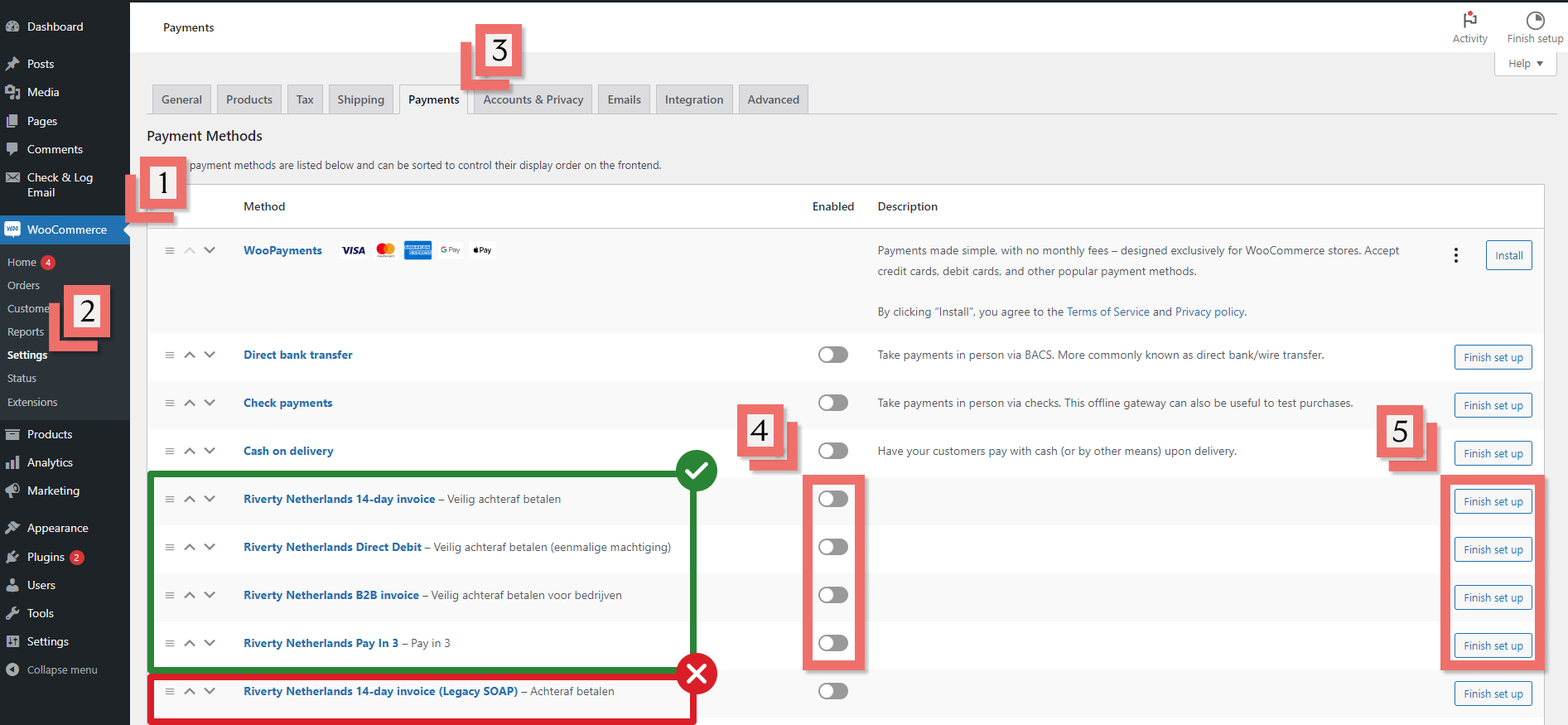
- Sign in to your Woocommerce Admin Panel and Select WooCommerce
- Select Settings
- Select Payments Tab
- Enable Wanted Payments Methods
- Note, any payment methods marked (Legacy SOAP) should not be selected
- Click Finish set up
Step 4: Configure Payment Method
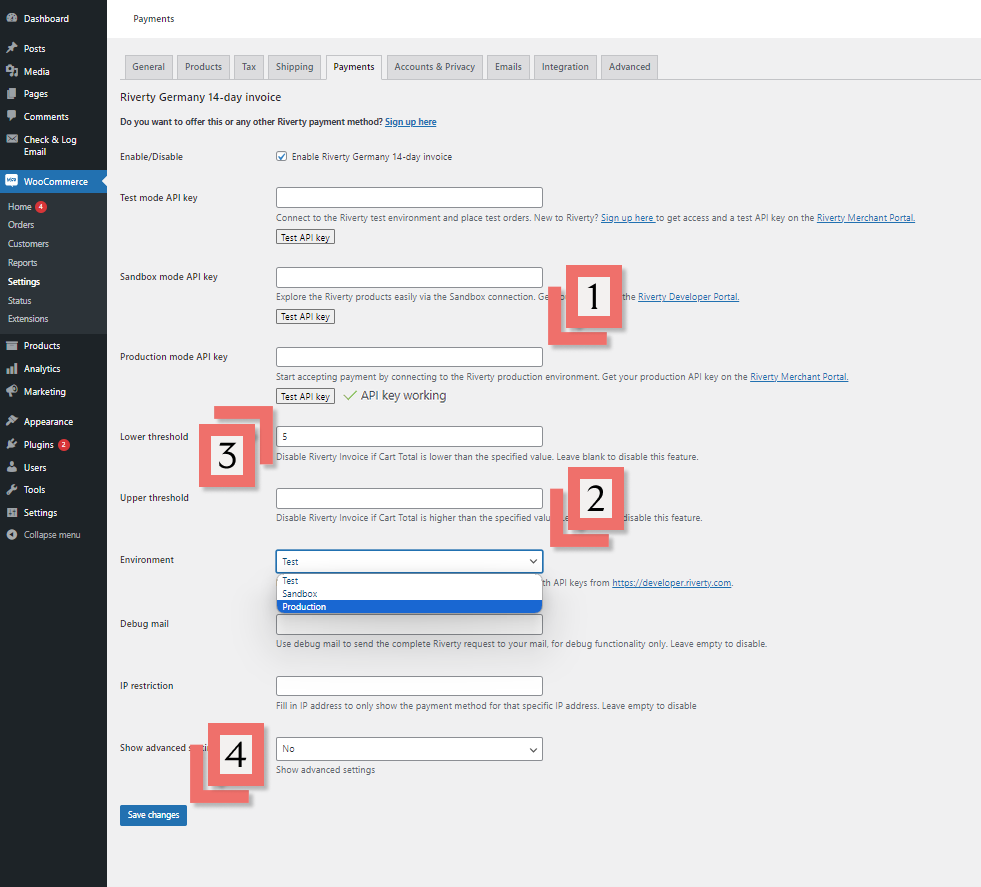
- Enter your API Key from the Merchant Portal into Production mode API Key
- Note, if you would like to test before using a live key, please log into your Test Merchant Portal Account for a Test API Key
- Select Production in Environment
- Note, if you are testing with your Test API Key, select Test instead
- Click Test API Key and a green checkmark should appear
- If the API key test fails, double check the key for typos and confirm it is for the selected environment
- Click Save Changes
- Note, if you are testing first, you will need to repeat this step with your Production API Key when you are done with testing.
- If successfully saved, the Finish set up button should change to Manage

Step 5: Transfer SOAP Settings to RESTful
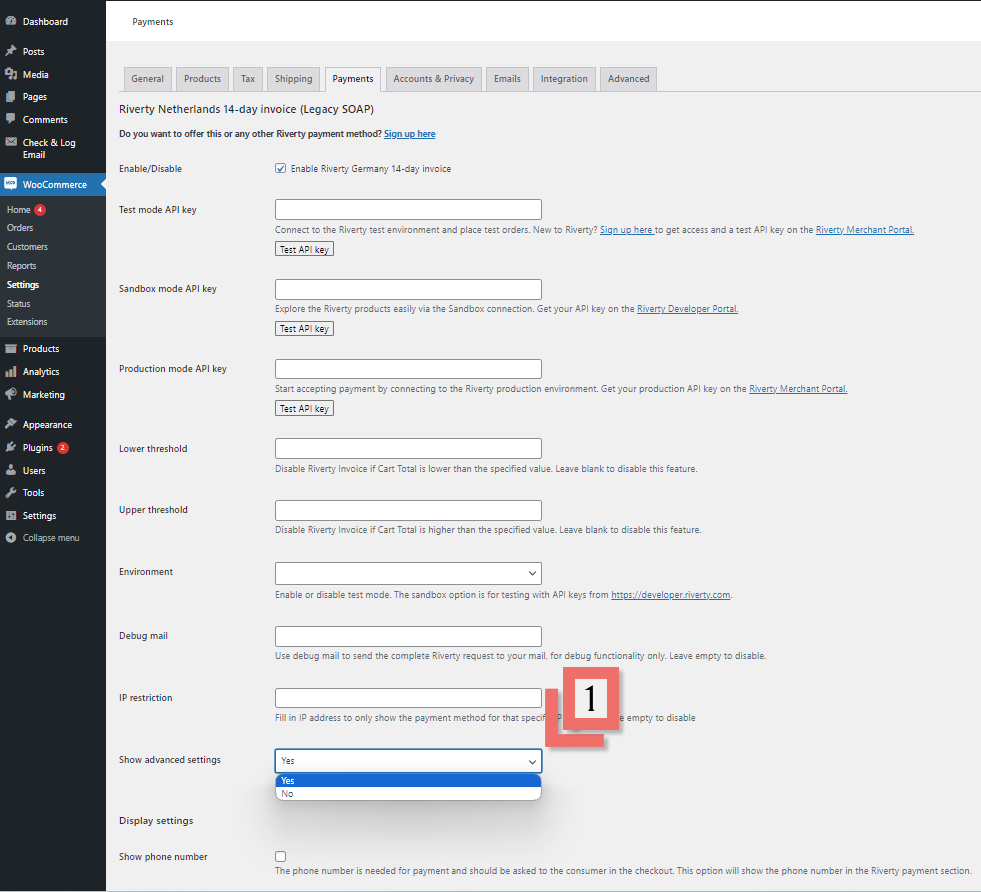
- Check your old (Legacy SOAP) payment methods for any settings (other than those mentioned in Step 4). Be sure to check your advanced settings.
- If you find settings which need to be transferred from SOAP to REST, please see a translation table below detailing which settings correlate to one another.
- Note, some SOAP settings were simply removed from the REST interface altogether and do not need to be transferred. They are marked “not applicable”
| Field name in SOAP | Field name in REST | Notes |
|---|---|---|
| Title | Not applicable | Not needed for REST |
| Test mode API Key | Input for Partner test / Test API Key taken from Riverty Merchant Portal. | |
| Sandbox mode API Key | API Key from Riverty Developer Portal | |
| Production mode API Key | API Key from the Riverty Merchant Portal. | |
| Extra information | Not applicable | Description of the payment method |
| Merchant ID | Merchant ID | Not needed for REST |
| Portfolio number | Not applicable | Not needed for REST |
| Portfolio password | Not applicable | Not needed for REST |
| Lower threshold | Lower threshold | Not needed for REST |
| Upper threshold | Upper threshold | Copy from SOAP to Rest |
| Test mode | Environment | Environment, could be Partner Test/Test, Sandbox, Live/production |
| Debug mail | Debug mail | Make sure the Environment is set to 'Production |
| Notification mail | Not applicable | Not needed for REST |
| IP Restriction | IP Restriction | Not mandatory. If you would like to add an IP restriction to your webshop when using a Riverty payment method |
| Show advanced settings (zet op "Yes") | Show advanced settings (zet op "Yes") | Optional |
| Show phone number | Show phone number | Set to 'Yes |
| Show gender | Not applicable | Not needed for REST |
| Exclude shipping methods | Exclude shipping methods | Not needed for REST |
| Use custom house number field | Use custom house number field | Copy from SOAP to Rest |
| Use custom house number addition field | Use custom house number addition field | Copy from SOAP to Rest |
| Enable captures | Enable captures | Copy from SOAP to Rest |
| Way of captures | Way of captures | Copy from SOAP to Rest |
| Enable refunds | Enable refunds | Copy from SOAP to Rest |
| Refund tax percentage | Enter 21 if you sell VAT-taxed products in your shop |